The Hooky iOS SDK
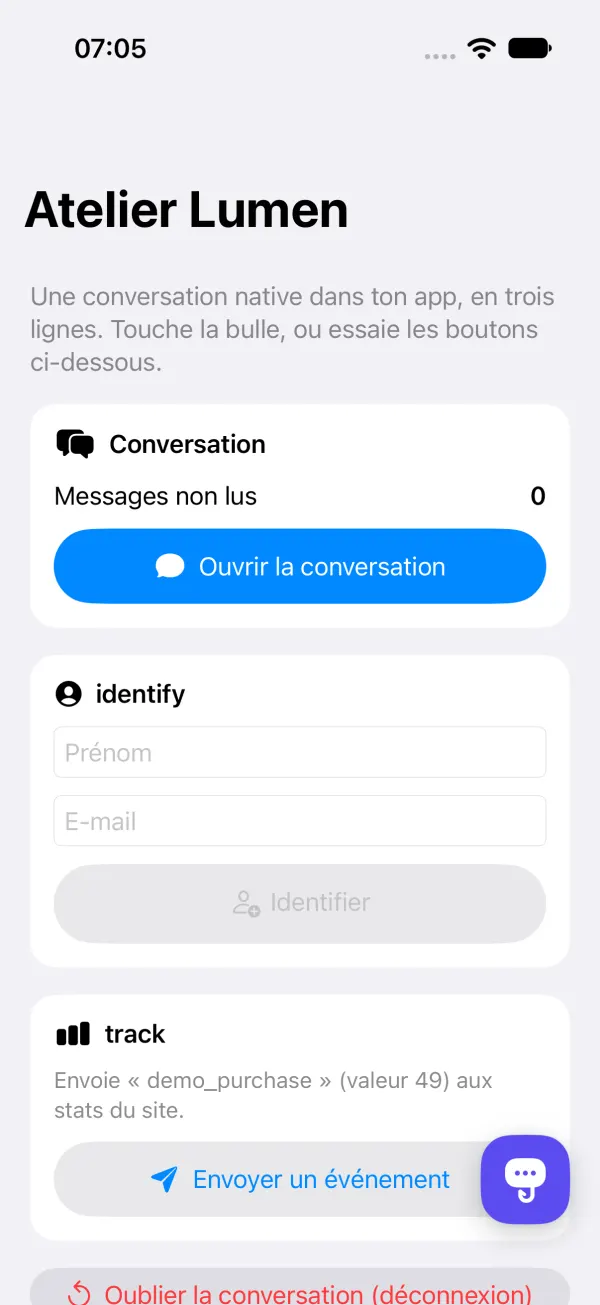
The Hooky conversation, native in your iPhone, iPad or Mac (Catalyst) app: written in SwiftUI, no WebView, in your site’s colors. Your users write, your team replies from the same inbox as for the web bubble.
Requirements
- iOS 15 or later, and Mac Catalyst 15 or later.
- Xcode 16 or later (the package is written in Swift 6). Your app can stay on Swift 5.
- No third-party dependency: URLSession, WebSocket, PhotosUI and the Keychain, nothing else.
- A Hooky account and a site: its public key is in Sites › Install, the same as the web bubble’s
data-site-key.
Installation
Only Swift Package Manager is supported. In Xcode: File › Add Package Dependencies…, paste the package address, keep the Up to Next Major Version rule from 1.0.0, then add the Hooky product to your app’s target.
https://github.com/Defdjamel/hooky-iosOr in a Package.swift:
dependencies: [
    .package(url: "https://github.com/Defdjamel/hooky-ios", from: "1.0.0"),
],
targets: [
    .target(name: "MyApp", dependencies: [
        .product(name: "Hooky", package: "hooky-ios"),
    ]),
]
The package ships its privacy manifest (PrivacyInfo.xcprivacy), which Xcode adds to your app’s privacy report. The source code is under the MIT license: github.com/Defdjamel/hooky-ios.
Get started in 3 lines
import Hooky

// 1. At launch (App.init or application(_:didFinishLaunchingWithOptions:))
Hooky.configure(siteKey: "SITE_PUBLIC_KEY")

// 2. The floating bubble, on any SwiftUI view
ContentView().hookyBubble()

// 3. Or the conversation from your own button
Hooky.open()
configure loads the site’s name, color and welcome message, restores the conversation saved on the device and opens the live connection. Call it once, before any other call.
@main
struct MyApp: App {
    init() { Hooky.configure(siteKey: "SITE_PUBLIC_KEY") }

    var body: some Scene {
        WindowGroup { ContentView().hookyBubble() }
    }
}| Parameter | Role |
|---|---|
siteKey | Required. The site’s public key. |
language | Optional. Forces the conversation’s language: "fr", "en", "es", "pt", "it" or "de". Without it, the device’s (see Language, dark mode, accessibility). |
translation | Optional, true by default. false removes translation of your team’s messages (see Message translation). |
apiURL | Optional, to test against your own server. Defaults to https://api.heyhooky.com. |
The bubble
A floating button in your site’s color, with the Hooky logo and a red badge for replies not read yet. Tapping it opens the conversation.
SwiftUI
ContentView()
    .hookyBubble()                         // in the bottom corner, on the side set for the site

ContentView()
    .hookyBubble(alignment: .bottomLeading, padding: 24, hidden: isAtCheckout)

HookyBubble(size: 56)                      // the button alone, to place yourself
HookyBubble { showMySheet = true } // with your own actionalignmentforces the corner (otherwise, the left or right side set in Sites);paddingsets the distance from the edges (60 points wide, 20 margin by default);hiddenhides it on a screen where it would get in the way.- The bubble disappears while the conversation is open.
UIKit
// In the bottom corner, within the safe area (leading: true for the left)
Hooky.showBubble(in: view)

// Or a UIView to place yourself
let bubble = HookyBubbleView(size: 60)
Open and close the conversation
Hooky.open()               // full-height sheet, over the topmost view controller
Hooky.open(from: self)     // UIKit: presented by this view controller
Hooky.close()              // closes it
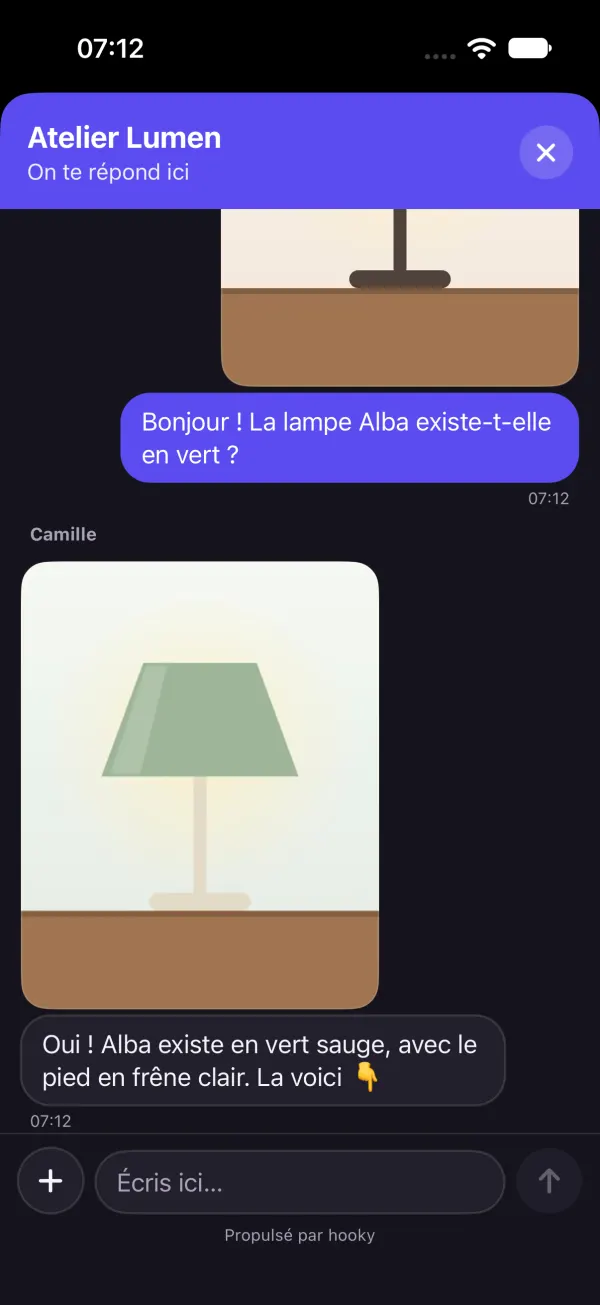
On iPhone, the conversation opens as a full-height sheet; on iPad and Mac, as a centered sheet. Your user closes it with the × button or by swiping it down. To present it yourself (in a .sheet, a navigation stack…), use the view:
.sheet(isPresented: $chat) { HookyConversationView() }Unread messages
The bubble already shows its badge. For your own buttons (a Help tab, a menu icon), the number of team replies not seen yet is available live. It drops back to 0 when the conversation opens.
// SwiftUI: Hooky.shared is an ObservableObject
@ObservedObject var hooky = Hooky.shared

HelpView()
    .tabItem { Label("Help", systemImage: "questionmark.bubble") }
    .badge(hooky.unreadCount)

// UIKit: an AsyncStream (the current value, then each change)
Task {
    for await n in Hooky.unreadCountUpdates() {
        tabBarItem.badgeValue = n > 0 ? "\(n)" : nil
    }
}

// Or a closure, called on the main thread
Hooky.shared.onUnreadCountChange = { n in print(n) }
Hooky.shared also publishes siteName, isOpen and isConfigured, for your interface. Replies arrive live while the app is in the foreground; when it comes back to the foreground, the SDK catches up on what it missed. Version 1.0.0 doesn’t send push notifications to your users.
Identify the user
Your app knows who is signed in: tell Hooky. On the conversation’s details, your team reads the name, the email, your own user ID, the device and the data you attach. With an email, the conversation no longer asks for a first name or email.
// After sign-in
Hooky.identify(
    name: "Lila",
    email: "lila@example.com",
    userId: "u_1042",                                 // your own ID
    attributes: ["plan": "Pro", "cart": 49.9, "beta": true]
)

// Later: merged with the previous data
Hooky.setAttributes(["cart": 12, "last_screen": "Payment"])
Hooky.setAttributes(["beta": nil])                    // nil removes a key

// On sign-out
Hooky.reset()
Values are HookyValues: a string, a number or a boolean. Literals are written as is; for a variable, give the type: ["plan": .string(user.plan), "cart": .number(total), "beta": .bool(beta)].
How it works
- No conversation yet: everything stays in memory and is sent with the first message. After that, each change is sent right away, grouped (a single request for everything that changes within the same second). Offline, it goes out with the next message or when the app comes back.
nameandemailreplace the conversation’s (nilclears them on the device);userId: nilleaves it unchanged.- The
userIdis kept with the conversation token. AuserIdthat is different means another account on the same device: the conversation is forgotten, as withreset(). The new user doesn’t see the previous one’s thread. Hooky.reset()closes the conversation and forgets the thread, the identity, the data and the draft. Call it on sign-out.- None of these calls throws an error. Call
configurefirst: otherwise,identifyandsetAttributesdo nothing (and stop on an assertion in Debug).
Data rules
| Field | Rule |
|---|---|
| Free data | Flat: 50 keys at most, 8 KB in total. New keys replace old ones, the others stay. |
| Key | 1 to 64 characters: letters, digits, spaces, _, . and -. Otherwise it is ignored. |
| Value | A string (cut at 500 characters), a number or a boolean. nil removes the key. |
userId | 200 characters at most. |
name, email | The name: 100 characters at most. The email: a valid address, otherwise it is ignored. |
Hooky cleans up whatever goes over, and never refuses your user’s message.
This data is declarative: the site key is public, so anyone can use it to send any name, email or userId they like. It helps your team place the person; it doesn’t prove who they are. Never put a secret in it (password, token, card number), and never use it to grant access or act on an account: always check on your side.
Stats
Count what happens in your app, like Hooky.track on the web: cards show up in Stats, alongside the site’s. Call it right after the action has succeeded.
Hooky.track("signup")
Hooky.track("order", value: 49.9, properties: ["plan": "pro", "seats": 3, "trial": false])value: an amount or a quantity, summed in the card. Properties are flat (strings, numbers, booleans).- Callable from any thread, even before
configure: events wait (100 at most). Never throws an error; offline, the event is lost. - Same rules as on the web (name, 20 properties at most, rate limit): see Stats in the page.
Never send personal data (email, name, phone) in an event. Count actions, not people.
What the conversation does
- The first message, with an optional first name and email (or the ones from
identify), then a thread like the web bubble’s: team names, “… is typing”, “Read”, clickable links, large emoji, older messages on demand. - Up to 4 attachments per message, 10 MB each: photos (JPEG, PNG, HEIC, WebP, GIF) or PDFs. Photos from the library go through the system picker (no permission to ask for) and are scaled down to 2048 px before sending; files come from the Files app.
- To offer the camera, add
NSCameraUsageDescriptionto your app’sInfo.plist. Without it, the option is simply hidden. - Received photos open full screen (zoom, swipe, share), files in Quick Look.
- The draft survives closing the conversation and relaunching the app. The keyboard never hides the input field.
- Plain errors, in the user’s language: offline, file too large, too many files, too many messages at once.
Message translation
Your user and your team each write in their own language, as with the web bubble (see Message translation).
- Under a team message written in a language other than the conversation’s (the device’s, or the one forced by
language), a discreet Translate link. Once translated, the message shows in the user’s language, with “Translated from French · See original” to go back to the original text. - The translation button in the header offers Always translate: your team’s messages then arrive already translated. The choice is kept on the device, for each site key.
- A failed translation shows a short error with Try again. The user’s messages are never translated on their side; your team has its own Translate button, in the dashboard and the Hooky app.
- Only text is translated, not attachments. Translation is on by default; to remove it from your app:
Hooky.configure(siteKey: "SITE_PUBLIC_KEY", translation: false).
What the SDK sends
What the web bubble sends, and nothing else. No advertising identifier, no cross-app tracking, no third-party library. To fill in the App Privacy details of your App Store listing:
| Data | When | App Store listing |
|---|---|---|
| Messages, photos and PDFs | When the user writes | User Content: Customer Support, Photos or Videos |
| First name and email | If they give them, or if you pass them to identify | Contact Info: Name, Email Address |
Your userId | If you pass it to identify | Identifiers: User ID |
| Free data | What you pass to identify and setAttributes | Depends on what you put in it (a cart: Purchases, Purchase History…) |
track events | When you send them, with no personal identifier | Usage Data: Product Interaction (Analytics), not linked to the user |
| Device, language, time zone, app | With the conversation | Technical information for your team (see below) |
- All this data is used for App Functionality (customer support), and stats for your Analytics. None of it is used for tracking as Apple defines it: no App Tracking Transparency prompt.
- The device is readable: “iPhone 15 Pro · iOS 18.2”, “iPad Air 11-inch (M2) · iPadOS 18.1”, “Mac · macOS 15.1”. Each request carries
X-Hooky-Client: hooky-ios/1.0.0andX-Hooky-App: <bundle id> <version> (<build>): your team sees the conversation come from “iOS · com.example.app 2.3 (45)”. - On the device: the conversation token (the user’s only key) and the
userIdin the Keychain (this device only, after first unlock), per site key; the draft, the last message seen and the “Always translate” choice inUserDefaults. A translation only sends the message’s ID and the conversation’s language. - Hooky processes this data on your behalf (processor under the GDPR): see the privacy policy. You remain responsible for your listing: declare what your app really sends.
Language, dark mode, accessibility
- Language
- The interface comes in French, English, Spanish, Portuguese, Italian and German. It follows the device’s preferred languages, English by default;
Hooky.configure(siteKey:language:)forces one. The language is sent with the first message, so your team replies in the right language and at the right time (with the time zone). - Dark mode
- The conversation follows the device’s light or dark mode, with your site’s color. Nothing to set.
- Accessibility
- Every control has its VoiceOver label (the bubble: “Open chat with …”, and the unread count); Dynamic Type everywhere, and the keyboard never hides the input.
Troubleshooting
- My site has declared its addresses: is the app refused?
- No. An app has no address: it identifies itself with its
X-Hooky-Clientheader and gets through even when the site has declared its domains. Don’t add anything in Sites. - The bubble keeps the default colors, or nothing arrives
- Check the key: it’s the site’s public key (not the secret key
hks_…, nor an API keyhka_…). With an unknown key, the Xcode console shows “Hooky: the site couldn’t be loaded (HTTP 404…)”. - Offline
- The message shows “No connection” and stays in the field;
identifyandsetAttributesare sent later. The site’s appearance reloads when the conversation opens. - The Camera option doesn’t appear
- Add
NSCameraUsageDescriptionto yourInfo.plist. - Another user sees the old conversation
- Call
Hooky.reset()on sign-out, and pass auserIdtoidentify: a different ID starts from a blank conversation.
Changelog
- 1.0.0
- First release:
configure, the SwiftUI and UIKit bubble,openandclose,identify(withuserIdand free data),setAttributes,track,reset, live unread count, photos and PDFs, translation of your team’s messages, six languages, dark mode, VoiceOver and Dynamic Type.